Getting started with livewells
livewells lets a security analyst open a suspicious link by hand in a disposable browser, and send a suspicious file to be read. You keep a video and a defanged report of the redirect chain, the domains and the IP addresses, with IP context and reputation. A file gets a defanged report of what it holds.
livewells checks links and files. A link opens in a disposable browser. A file is read in a disposable container, by upload or API. livewells reads email files, QR codes, HTML attachments, PDFs, Office documents and archives, including password-protected archives.
The pictures in this guide show a sample organisation.
What you need
- A Microsoft Entra ID organisation. People sign in with their work account.
- A Microsoft Entra administrator, once, to give consent.
- A livewells plan. See Billing.
Give admin consent
- Your Entra administrator opens
https://app.livewells.io/auth/consent. - Microsoft shows the consent page. The administrator approves.
- A thank-you page shows your organisation id. Send that id to Maelstrom AI if you were not given an onboarding contact.
livewells asks for the sign-in permissions openid, profile and email.
Until your organisation is set up, people who sign in see "Your organisation is not set up for livewells yet". When sign-up is open, that page offers Subscribe, and you name the administrator on the checkout page. The page also shows the organisation id to send us, if you prefer to set up by email.
If your policy does not allow a shared app, ask us about a single-tenant app registration in your own Entra tenant.
Sign in
- Open
https://app.livewells.io/signin. - Enter your work email and choose Continue.
- Sign in with your work account at Microsoft.
livewells sends you to Microsoft to sign in.
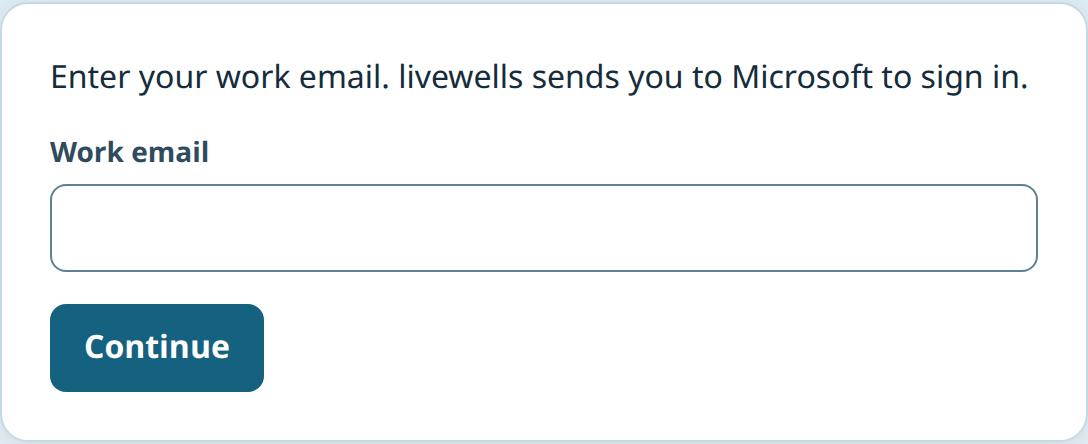
Sign-in follows your organisation's own Entra policy, including multi-factor sign-in.
A sign-in lasts up to 8 hours and ends after 30 minutes without use. Choose Sign out to end it sooner. To end your sign-ins in other browsers, open Settings, go to Your sign-ins and choose Sign out other sessions.
Run your first case
- On New case, paste the suspicious link and choose Preview.
- Read the preview. See Cases.
- Choose Start. The live view shows the disposable browser in a window on the page. Wait for it to load.
- Click, scroll and type in the live view. Follow the redirects you want to see.
- Choose End and save when you have seen enough.
- Open the case, read the report and set a verdict.
The case keeps the video, the chain, the indicators and the enrichment. Enrichment arrives a short time after the session ends.
Run a case from a file
- On New case, choose Upload a file.
- Drop the file on the page, or choose it from your computer. If the file is locked, tick This file is password protected and type the password.
- Choose Check file.
- Wait while livewells reads the file. The page refreshes by itself.
- Read the report. See Files for the file types and the limits.
- Choose a link in the report to open it in the disposable browser. That run uses one submission.
Limits
- Your plan allows 500 submissions a month. A submission is one session of up to 15 minutes, or one file. A top-up adds 250.
- Your organisation can run 3 sessions at the same time. An ended session holds its place until its browser has closed.
- Your organisation can start 10 sessions and file checks in any 15 minutes. Each person can start 5 sessions in any 15 minutes. Ending a session early does not give a start back. When you reach a limit, livewells shows the time to wait.
- Your organisation can export 10 case ZIPs a minute and make 120 video reads a minute. Over a limit, livewells answers
429and the time to wait is 60 seconds. - If your organisation uses more than 150 minutes of browser time in one hour, livewells pauses new sessions and file checks for it. Sessions that run continue. Write to support@livewells.io to have the pause lifted.
- The case page, the reports, the case ZIP and the API show indicators defanged. Copy raw, Copy for blocklist, hunt searches and the raw network log hold original values. Before livewells copies raw values, it asks you.
Get help
Write to support@livewells.io. We reply to support email by the next business day, 09:00 to 17:00 Australian Eastern Time. This is a target, not a resolution time. Put the case id in your email, so we know which case you mean. See Support.
Next
- Cases for the case page and defanging.
- Enrichment for the threat intelligence checks.
- Administering livewells for administrators.
- Files for files, with a guide for each file type.
- Captured downloads for files that a page offers for download.
- API to submit links and files from your tools.
- Integrations for the templates that connect Microsoft Sentinel and Tines.
- Privacy and security for privacy and security.