Administering livewells
Administrators manage the settings of an organisation. The buyer names the first administrator by email at checkout. The administrator confirms on the first sign-in with that email, within 30 days, and then becomes the first administrator. If Maelstrom AI sets up your organisation by email, it names the first administrators.
Roles
An organisation has three roles: administrator, analyst and read-only.
- Everyone who signs in through your Entra organisation is an analyst of your livewells organisation, unless the person holds the role described under Read-only access.
- We recommend that you turn on "Assignment required" on the livewells enterprise application in Entra and assign your analysts, administrators and read-only people to it.
- An analyst can start a case, read the cases of the organisation and export a case.
- The analyst who ran a case, or an administrator, can set its verdict and exclude it from threat data.
- livewells adds "(unverified)" to the email of a person when Microsoft has not confirmed the address as verified by the domain owner.
- A run that a person queued from the page opens only for that person and for an administrator. A run that an API key queued opens for every member.
- In the audit log, an administrator sees every field. Any other member sees names only, with no sign-in identifier, source hash or request id.
- Only an administrator can manage API keys and webhook endpoints, change retention, switch sample downloads on or off, exclude all cases from threat data, export the audit log, buy a top-up and manage people.
Read-only access
A person with read-only access looks at the cases of the organisation and changes nothing. The page shows the line "You have read-only access."
- A person with read-only access can list the cases, open a case with its report, its network view and its enrichment checks, see the sign-ins of their own account and see the Usage section of Settings.
- livewells refuses each of these for a person with read-only access: start a case, upload a file, use the queue, watch a live view, send input to a session, export a case, download a report, a sample or a captured file, set a verdict, exclude a case from threat data, delete a case, end the session of another person, make or revoke an API key or webhook endpoint, change a setting, read the audit log, see the people of the organisation, copy a raw link, copy a hunt query and call any route that changes data. The refusal is the answer
403with the codereader-read-only. - In Entra, assign the app role
livewells.readeron the livewells enterprise application. A token that holdslivewells.readerand neitherlivewells.membernorlivewells.adminis read-only. A token that also holdslivewells.memberorlivewells.adminis read-only. When your organisation requires an app role to sign in, that person is an analyst. - An administrator can also set the role in People. Maelstrom AI sets it on request with the operator command
add-reader. - livewells records the role at each sign-in and at each silent re-check, which runs every 15 minutes. A role you change in Entra reaches a session that is open within 15 minutes. An account that Entra disables loses its open session at the next re-check, within 15 minutes.
People
An administrator sees everyone who has signed in to the organisation under People in Settings. The list shows the name of each person, the role and the time of the last sign-in. The name carries "(unverified)" where Microsoft has not confirmed the address.
- To change a role, choose Administrator, Analyst or Read-only for the person and choose Change role.
- A change of role ends all sessions of that person. The person signs in again.
- To end the sessions of a person without a change of role, choose End sessions.
- An organisation keeps at least one administrator. livewells refuses to remove or demote the last administrator.
- Each change of role writes an audit entry with the old and the new role.
- To change a role, you need a sign-in from the last 15 minutes.
- When your organisation requires an app role to sign in, People shows the roles and does not change them. Entra sets only analyst and read-only. Administrators keep the role that People shows. To change an administrator, ask Maelstrom AI to turn the rule off first. A person who is read-only because of the Entra role
livewells.readershows the same way. Change the analyst and read-only roles in Entra. - A person of another organisation never shows in your list, and no route of yours changes one.
Multi-factor sign-in
Maelstrom AI turns on the multi-factor requirement for your organisation on request, with the operator command set-require-mfa. With it on, livewells lets in only a person whose Entra sign-in used more than one factor, at each sign-in and at each silent re-check. A person without it sees the page "Multi-factor sign-in required" and signs in again with a method that uses more than one factor. The refusal is written to your audit log with the code mfa-required. The setting is off until you ask for it.
Recent sign-in
An administrator needs a sign-in from the last 15 minutes for each change in this list. If the sign-in is older, livewells asks you to sign in again and brings you back to the page.
- Make or revoke an API key.
- Add, rotate or remove a webhook endpoint.
- Change the retention period.
- Delete a case.
- Switch sample downloads on or off.
- Change the threat data setting or the hunt snippet setting.
- End the sessions of a person.
- Change the role of a person.
- Delete everything.
Settings
Settings has the sections Usage, People, Your sign-ins, Billing, API keys and webhooks, Data use, Retention, Samples, Audit log, How enrichment works and Help. In Data use and Retention, an analyst sees the names of the administrators. In the other administrator sections, an analyst is told to ask an administrator. A person with read-only access sees Usage and the explanation sections. People is for administrators.
Usage
Usage shows the figures of your organisation for the month. Everyone who signs in sees Usage, read-only people included.
- Usage shows Plan, Month (UTC), Submissions used, Included submissions, Top-up submissions this month and Sessions running now.
- Network traffic used and Stored files used show each figure against its limit. See Limits.
- Access until shows the end date of an organisation that has one. Only administrators see it.
- A submission is one session of up to 15 minutes, or one file. The month is counted in UTC.
Your sign-ins
Your sign-ins shows for analysts and administrators who sign in with Microsoft. Choose Sign out other sessions to end your sign-ins in all other browsers and devices. This browser stays signed in. When it is done, livewells shows "Other sessions signed out."
API keys
In API keys and webhooks, enter a key name, choose how long the key is valid and its access, and choose Create key. Choose Read and send links and files, Read only, or Download samples only for the access. To limit a key to IP ranges, type them in Allowed IP ranges (optional, separated by commas). To make a key that can only queue runs, choose Queue links only for the access and type the hours in Valid for (hours, 1 to 72).
- A key is valid for 30 to 365 days. Settings offers 30, 90, 180 or 365 days.
- A queue key is valid for 1 to 72 hours.
- livewells shows the key once, when you make it.
- An organisation can hold up to 20 active keys.
- Only active keys count toward the 20.
- A key that nobody uses for 90 days stops working.
- When a person stops being an administrator, livewells revokes the keys that person made.
- A key can be limited to up to 20 IP ranges.
- A key name has up to 60 characters.
- A key made without an end date of its own is valid for 365 days.
- To make a key, you need a sign-in from the last 15 minutes.
- To revoke a key, you need a sign-in from the last 15 minutes.
See API for how a script uses a key.
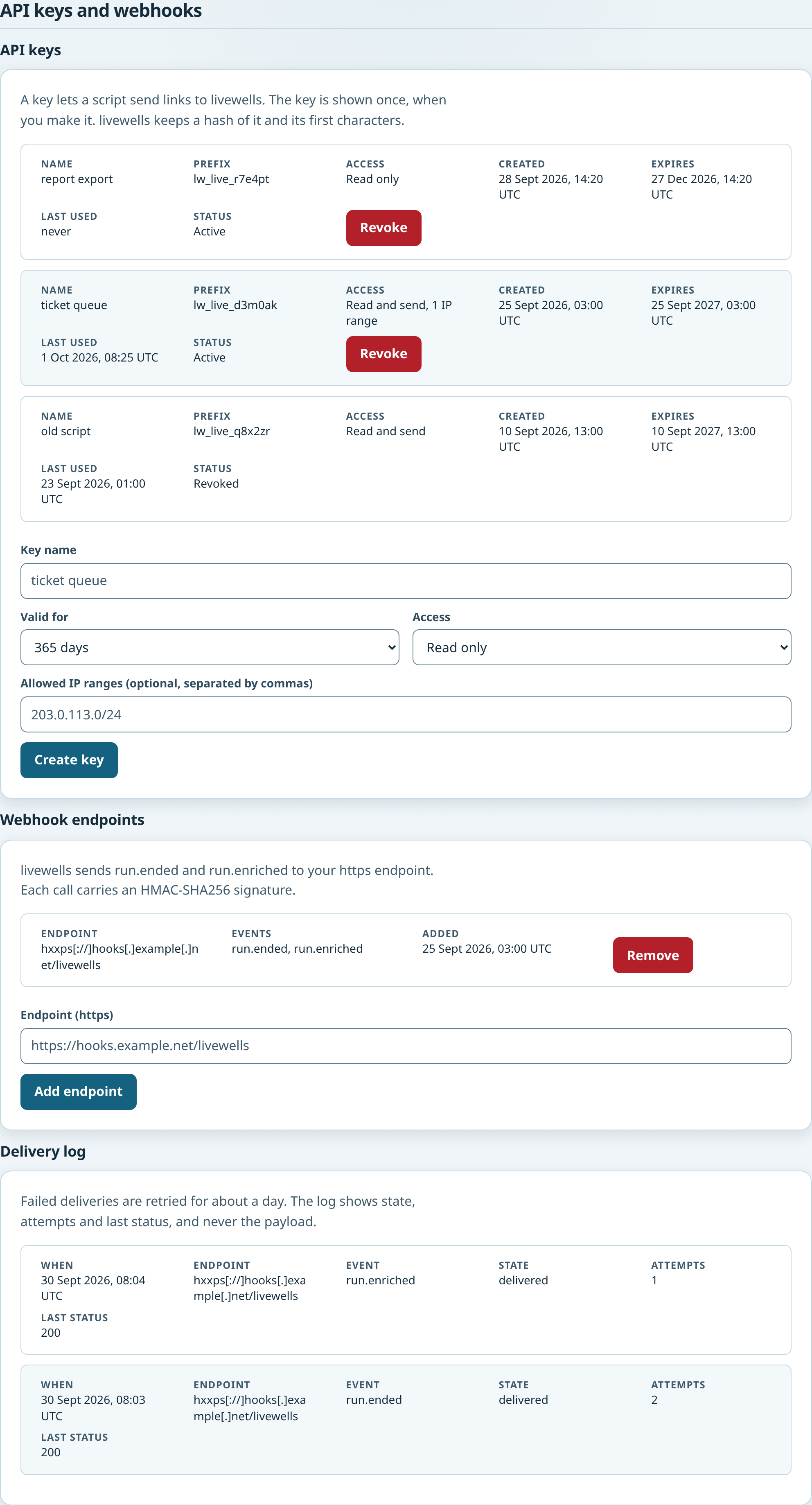
An endpoint gets three events: run.ended, run.enriched and run.verdict. The note in the picture lists the first two.
Webhook endpoints
Type the https address of your endpoint in Endpoint (https) and choose Add endpoint.
- livewells shows the signing secret once.
- An endpoint must use https, and its host name must not be a livewells.io name.
- To change the signing secret, call the rotate route of the API. The old secret keeps signing for 24 hours unless you choose another time, so your receiver can switch without a gap. The overlap is 1 to 168 hours, and the default is 24 hours. See API for the call.
- An organisation can add up to 5 endpoints.
- An organisation holds each address once. livewells refuses an address that another endpoint of the organisation has.
- Another organisation can use the same address.
- To add, rotate or remove an endpoint, you need a sign-in from the last 15 minutes.
- The delivery log shows the state, the attempts and the last status of each delivery.
Retention
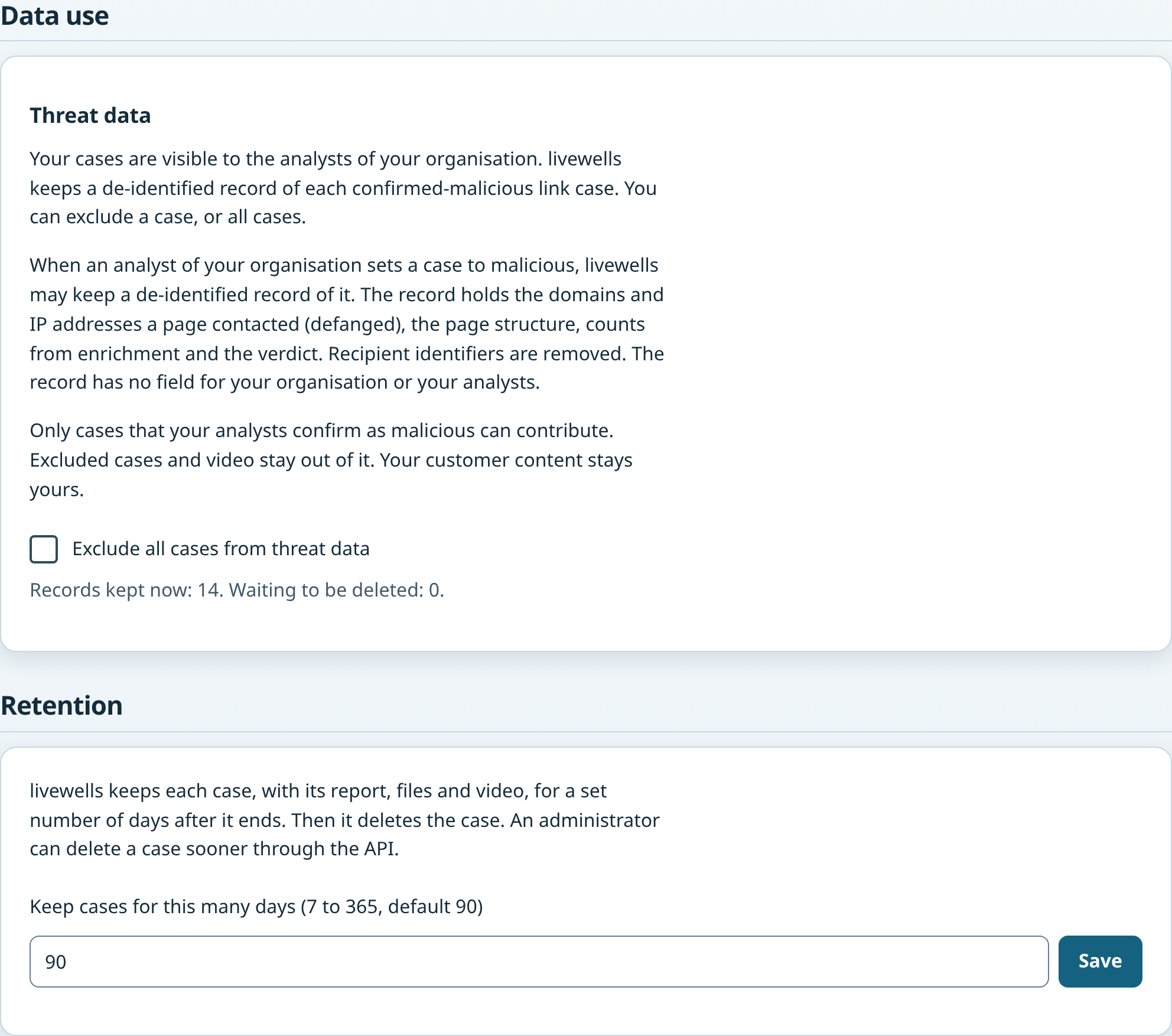
livewells keeps each case for the retention period. The default is 90 days. An administrator can set 7 to 365 days under Retention. When you shorten the period, livewells asks you to confirm before it deletes the cases that are already older.
Storage
Each organisation can keep 20 GiB of stored files. The total holds every uploaded file, every file a browser case captured, and the pages, reports and evidence of each case. A new file or captured file that would pass that limit is refused with the message that storage is full. Delete older cases to make room, or write to support for more storage. Deleting a case, or the end of its retention period, gives its space back.
Sample downloads
In Samples, an administrator ticks Allow sample downloads to let members download the original files of a case in a password-protected ZIP. The setting is on by default. The audit log lists each change. See Cases.
Threat data
An administrator can choose "Exclude all cases from threat data" under Data use. The analyst who ran a case, or an administrator, can exclude one case on the case page. See Privacy and security.
Audit log
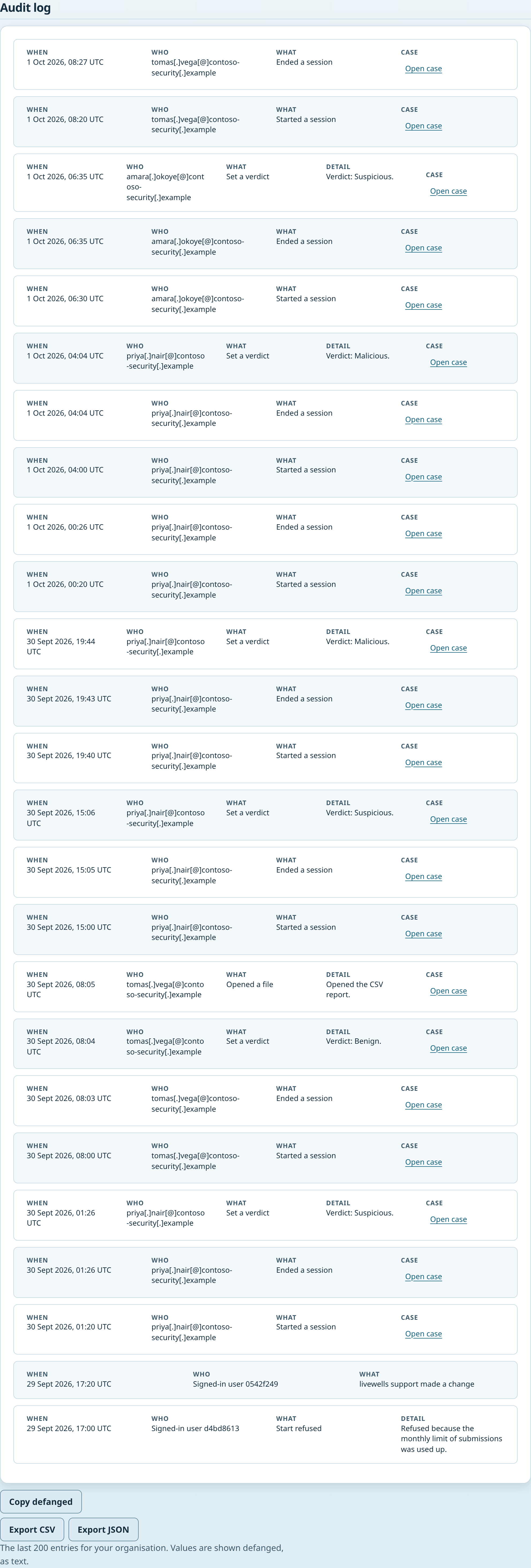
The audit log lists the last 200 entries for your organisation. An administrator sees each entry in full. A member sees the same entries with each person shown by name only. An administrator chooses Export JSON or Export CSV to export it.
The app has no way to edit or delete an audit entry, and each entry links to the entry before it.
Refused sign-ins of one kind show as one entry for each minute. When a minute held more than one, a summary entry gives the count of the others. The first entry plus that count is the total for that minute.
Entries for sign-in, sign-in refusals, API keys, webhook endpoints, administrators, sign-in providers, downloads and deleted cases stay for at least 365 days, even when your retention period is shorter.
The audit log records the first administrator of your organisation and each Microsoft organisation linked to it.
Billing
Billing shows the plan, the status, the interval, the next renewal, the included submissions, the top-ups, the submissions allowed this month and the sessions that can run at once. An administrator can buy a top-up under Billing. See Billing.
Billing portal and invoices
An administrator chooses Manage billing to open the billing portal. The billing portal is a page of Stripe.
- Invoices lists the date, the status and the amount of each invoice.
- When the plan is set to end at the end of the period, Billing shows Ends on and the end date in place of Next renewal.
- An organisation that Maelstrom AI sets up by email sees the plan as Set up by us and has no invoices in Settings.
Support access
Support reads the content of your organisation only with your written permission. When support asks for access, the request waits under People in Settings, in the Support access block, with the reference of your permission and the end date.
- Support access starts when an administrator chooses Approve. Until then support reads no content.
- Support access lasts up to 30 days and ends at the date shown, or earlier when support revokes it.
- To approve, you need a sign-in from the last 15 minutes.
- Each request, approval and revoke writes an entry in your audit log, and the approval names the administrator.
- An administrator of another organisation never sees or approves your request.
Support
Write to support@livewells.io. Put the case id in your email, so we know which case you mean. See Support.